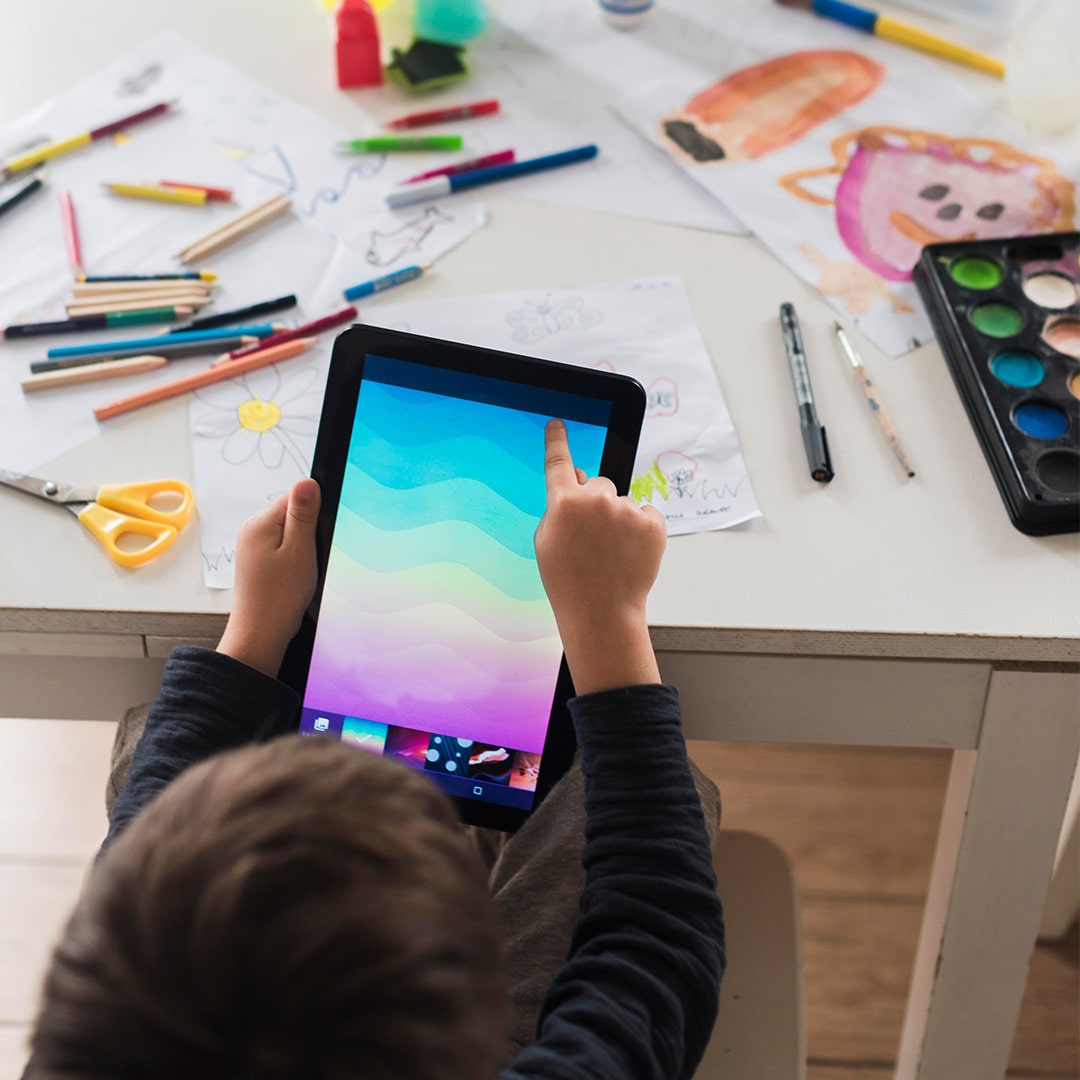
The best coloring apps for kids offer age-appropriate drawing tools, simple controls and activities that children can enjoy with their parents. Kids Doodle and Magic Coloring provide different drawing and coloring options on Android, while Bini Drawing Games introduces younger children to guided illustrations. Pigment offers more detailed artwork on iPhones and iPads, although its adult-oriented features require parental attention.
Coloring has been part of childhood for generations. From drawing animals with crayons to filling sketchbooks with imaginary characters, children use pictures to express ideas that they may not yet have the words to explain.
Digital applications offer another way to explore art. Instead of replacing pencils and paper, they give children additional tools, such as digital brushes, undo options and reusable coloring pages.
However, the apps differ in their features, supported devices and available content. Parents should understand those differences before choosing one.
How to choose a coloring app for your child
A colorful interface does not automatically make an application suitable for every child. Parents should consider what their child enjoys doing and how independently they can use the available tools.
Here are some points worth checking:
- Drawing style: Some apps provide ready-made pictures, while others let children create artwork on a blank canvas.
- Age suitability: Younger children may prefer fewer controls, whereas older kids may enjoy experimenting with brushes and shading.
- Advertisements: Check whether banners or promotional screens interrupt drawing activities.
- Purchases: Some applications require subscriptions to unlock additional pictures or tools.
- Sharing features: Review whether artwork can be uploaded, shared or viewed by other users.
- Device support: Confirm that the app is available for your phone or tablet.
Parents can also open an app themselves before giving it to a child. This provides a clearer idea of its menus, content and restrictions.
4 coloring and drawing apps for kids
The following applications offer different types of drawing experiences. Their descriptions are based on official app-store information, rather than independent hands-on testing.
1. Kids Doodle – Paint & Draw
Platform: Android Developer: Doodle Joy Studio
Kids Doodle focuses on free drawing. Instead of choosing only from prepared coloring pages, children can start with an empty canvas or draw over a photograph.
The app provides 24 brush styles, including neon, rainbow, crayon and other colorful effects.
It also includes a playback feature that shows how a picture was created.
An activity to try
Ask your child to draw a city after sunset.
They can use dark colors for buildings and brighter brushes for windows, streetlights and stars.
Once the drawing is finished, use the playback option to review the order in which different parts were added.
This gives parents an opportunity to ask how their child planned the picture.
What parents should know: The app contains advertisements and offers artwork-sharing options. Review these features before allowing a child to use it independently.
View Kids Doodle on Google Play
2. Bini Drawing Games for Kids
Platform: Android Developer: Bini Games
Bini Drawing Games introduces children to illustrations through guided drawing activities.
The app features animal characters that children can draw step by step. Some completed characters become animated and perform movements.
Its guided format may appeal to children who prefer following a sequence rather than starting from a blank page.
An activity to try
Let your child complete an animal illustration in the app.
Then give them a sheet of paper and ask them to draw the same animal from memory.
Compare the two pictures and discuss which details they remembered, such as the shape of its ears, tail or legs.
This encourages children to pay attention to the drawings they create.
What parents should know: The app contains advertisements and in-app purchases. Some characters and activities may require payment.
View Bini Drawing Games on Google Play
3. Magic Coloring – Color & Draw
Platform: Android Developer: Doodle Joy Studio
Magic Coloring combines prepared coloring pages with drawing tools.
The app includes pictures featuring animals, flowers, vehicles and other subjects. Children can choose from different brushes and use an undo option when changing their artwork.
It also provides a drawing playback feature.
An activity to try
Choose a picture of an animal or a landscape.
Ask your child to create two versions of the same picture.
For the first version, they can use colors commonly associated with the subject. For the second, let them choose an unusual combination.
For example, a child could create a purple forest or a blue elephant.
Afterward, ask what makes the second picture different and which version they prefer.
The activity encourages children to make their own artistic choices rather than looking for a single correct answer.
What parents should know: Magic Coloring contains advertisements. Parents should also check which pictures and drawing features are currently available in the installed version.
View Magic Coloring on Google Play
4. Pigment – Adult Colouring Book
Platform: iPhone and iPad Developer: Pixite Inc.
Pigment offers digital coloring tools designed to resemble traditional art materials, including pencils, markers and paintbrushes.
Users can choose from prepared illustrations or work on their own pictures.
The application provides more detailed options than the simpler drawing apps mentioned above. It may interest older children who already enjoy coloring intricate designs.
An activity to try
Choose an illustration with several sections.
Ask your child to select three colors and use lighter or darker shades of those colors throughout the picture.
Once the drawing is complete, discuss how the different shades affect its appearance.
This can introduce older students to the idea of color variation without requiring formal art lessons.
What parents should know: Pigment is primarily an adult coloring app. Its Indian App Store listing shows a 4+ age rating, but the application also offers community interactions, artwork sharing and subscriptions. The store rating should not be taken as a recommendation for unsupervised use by young children.
Which coloring app is suitable for your child?
Each application offers a different approach to drawing.
|
App |
Platform |
Main drawing feature |
What parents should check |
|
Kids Doodle |
Android |
Blank canvas and colorful brushes |
Advertisements and sharing |
|
Bini Drawing Games |
Android |
Guided animal illustrations |
Paid content and advertisements |
|
Magic Coloring |
Android |
Prepared coloring pages and brushes |
Advertisements |
|
Pigment |
iOS |
Detailed illustrations and art tools |
Community features and subscriptions |
The list is intended as a comparison, not a ranking based on personal testing.
For a beginner who enjoys following instructions, guided drawing may be easier to approach. A child who likes creating original characters may prefer an open canvas.
Older students interested in shading and more detailed artwork may enjoy additional tools, provided their parents are comfortable with the application's content and settings.
Can kids explore digital drawing with the Bambinos app?
The Bambinos Android app also includes a doodle feature that children can use for creative drawing activities.
Unlike dedicated coloring applications, which often provide ready-made illustrations, doodling allows children to create their own pictures.
Parents can use this feature alongside storytelling activities.
Try this drawing challenge:
Read a short story with your child and ask them to draw one scene from it.
For example, if the story takes place in a forest, the picture might include trees, animals and a path.
After completing the drawing, ask your child to explain what is happening.
They can describe the setting, introduce the characters and talk about what might happen next.
This connects drawing with speaking and storytelling.
The doodle feature is part of the Bambinos learning app, not a standalone coloring application.
Parents can explore the Bambinos Android app on Google Play.
Is digital coloring different from drawing on paper?
Digital drawing and traditional coloring use different tools, but both can be part of a child's creative activities.
With crayons and paper, children work directly with physical materials. They can experiment with pencil pressure, blend colors and observe how different marks appear on the page.
Digital apps provide options such as undoing a stroke, switching brushes and trying another color without replacing the paper.
Neither method needs to replace the other.
For example, a child might create an animal digitally and then draw it again using crayons.
Parents can compare both pictures with their child and ask which details were easier to create with each method.
The answers may differ depending on the application, the materials and the child's drawing experience.
A creative drawing activity for kids
Activity: Design a new school playground
This activity works with either a blank digital canvas or a sheet of paper.
Step 1: Imagine the playground
Ask your child to design a playground for a fictional school.
They can decide which play areas, paths and objects to include.
Step 2: Draw the layout
Use simple shapes to place the different parts of the playground.
A rectangle might represent a court, while circles could show trees or seating areas.
Step 3: Add colors and details
Choose colors for the ground, equipment and surrounding areas.
Your child can also add signs or labels to explain what each part represents.
Step 4: Present the design
Ask your child to describe the playground as if presenting the idea to their teacher.
They can explain where students would play and why they placed certain objects in particular areas.
This turns a drawing task into an opportunity to discuss planning and explain choices.
What should parents check before installing drawing apps?
Before downloading an application, review its latest official listing.
Pay particular attention to the following:
- Age rating: Check whether the content is appropriate for your child.
- Advertisements: Look for interruptions or links that lead outside the drawing activity.
- Paid features: Review subscriptions and purchase settings.
- Privacy controls: Examine how artwork and personal information may be shared.
- Content updates: Check whether new drawings, characters or community features have been introduced.
For younger children, it may be helpful to disable purchases and supervise access to sharing features.
Parents should also review the application after major updates because features and settings can change.
Coloring apps give children another way to draw, experiment with colors and create pictures using digital tools.
Kids Doodle, Bini Drawing Games and Magic Coloring provide different options for Android devices, while Pigment offers more detailed artwork on iPhones and iPads.
The right choice depends on the child's interests, the available features and the parent's assessment of the app.
Drawing can also become a starting point for storytelling. Asking children to describe their pictures gives them an opportunity to explain their ideas in words.
Parents can explore online learning programs for kids at Bambinos.live, including live classes that encourage children to express themselves.
Book a Free Demo to explore the available courses.
Frequently asked questions
What are the best coloring apps for kids on Android?
Kids Doodle, Bini Drawing Games and Magic Coloring are Android apps that offer different drawing activities for children. Kids Doodle supports free drawing, Bini provides guided animal illustrations, and Magic Coloring includes prepared pictures. Parents should compare their features, advertisements and purchase options before choosing one.
Are there coloring apps for kids on iPhone and iPad?
Pigment is available for iPhones and iPads and provides digital coloring tools, illustrations and detailed brush options. However, it is primarily designed for adults and includes community features and subscriptions. Parents should review its content and settings before allowing children to use it.
Can coloring apps help children learn?
Coloring apps can provide opportunities to explore shapes, colors and drawing techniques. Parents can add a learning activity by asking children to explain their artwork, compare two pictures or create illustrations based on a story. The benefit comes from how the child uses the tools rather than the application alone.
Are free coloring apps safe for children?
Free coloring apps vary in their advertisements, privacy settings and available purchases. Some provide simple drawing tools, while others include external links or social features that may require supervision. Parents should review the official listing and try the application before allowing independent use.
Does the Bambinos app include drawing activities?
The Bambinos Android app includes a doodle feature according to the company's product information. Children can use it for drawing activities, including creating pictures inspired by stories or classroom topics. Parents should check the current app version for access to the feature, which is part of a broader learning application rather than a dedicated coloring app.
About the Author

Sueallen Lobo
AuthorSueallen holds a Master’s degree in Psychology with a focus on Human Resources and is a Certified Public Speaking Expert. With over seven years of experience as an HR manager, she brings extensive expertise in employee training. In the past two years, Sueallen has shifted her focus to helping children become confident and effective communicators, marking a significant career transition. Her psychology background allows her to deeply understand and connect with children, fostering their personal growth. Sueallen's teaching approach involves fun, engaging, and innovative activities, such as singing songs, to help children develop self-confidence and a strong belief in their abilities.
LinkedIn Profile ↗